Archived forum. This is a read-only copy of the Smart Keyboard community forum (2010–2015), kept for its history and its skins. Posts are shown as they were written, so some answers are out of date — see Help for current information. Want a post of yours removed? Email contact@smartkeyboardpro.com.

Create your own skins

cyril Developer
Instructions for skins users

See this topic for instructions.

Instructions for skins designers

Here is a guide to explain how to create your own skins for Smart Keyboard (Pro)! These skins must be written in a new file format called "OpenSkin".
You will need:
  • The latest version of Smart Keyboard Pro (or at least SKP 3.4.0)
  • Optionally, get the Android SDK containing the Android emulator.
  • Some artistic skills ;)
An OpenSkin file is a simple .zip file, which you can download from anywhere and install on your SD card. In the current version of Smart Keyboard Pro you will need to copy skin files in the directory /sdcard/skins (i.e you need to create a "skins" directory when you mount your SD card on your computer). The valid OpenSkins in this directory will appear at the end of the skin list in the keyboard settings.

Download and extract the Android sample skin to see how is structured an OpenSkin file.
A skin archive contains the following files:
  • skin.xml
  • drawable/*.png
  • drawable-hdpi/*.png
The most important file is the skin.xml, which contains the description of the skin: name, images, colors, etc.
The images are located in either drawable or drawable-hdpi directories. All the images in drawable will be used on phones with MDPI screen resolution (160 dpi), which is the historical resolution of the first Android phones. A skin must contain images for MDPI phones to ensure compatibility. The images in drawable-hdpi are of course used on HDPI phones (240 dpi). It is not mandatory to provide HDPI images, but it is strongly recommended, otherwise the MDPI images will be scaled on the fly when loaded on a HDPI phone, and the skin will look blurry (not to say ugly).
The sample Android skin contains images for both MDPI and HDPI screens.

Now, an important thing to know is that most images for the skin (all the background images, actually) are in the ".9.png" format (see the sample skin), which is the "NinePatch" format developed specifically for Android by Google. A NinePatch image is a png with additional information to make the image stretchable easily. To create a NinePatch image, you can use the draw9patch tool contained in the Android SDK. You can also create such images without draw9patch; you just need to add a 1-pixel transparent border around your image, and put black pixels where needed to define the stretch zones of the image, as done by draw9patch.

Now, let's see how you can create your own skin:
  • Extract the sample skin.
  • Replace the images in drawable and drawable-hdpi by whatever you want
  • Edit the skin.xml file, change the skin name (keep the "1.0" version, it's not the version of the skin, it's the version of the schema!) and put the correct file names for images. Note that you must not put "drawable" or "drawable-hdpi" in the image file name, as the correct directory is computed at run time when the skin is loaded.
    In the sample skin there is no image for the background, but a color gradient. If you want to use a background image, just remove the color-top and color-bottom and put an image tag instead as explained in the comment.
  • Use your favorite archive tool to create a zip containing the skin.xml and drawable* directories. You can use any name for the zip file, but it's better to find a unique name to avoid conflicts (same thing for the skin name you defined in the skin.xml)
  • Upload the skin file to your SD card in "skins" directory
  • Go to Smart Keyboard skin settings, and test your skin ;)
  • You should test your skin on at least a MDPI and a HDPI phone. If you can't do this, use the Android emulator included in the SDK. This is always a good idea when creating skins that will be uploaded online, as more people will be able to enjoy the skin.
  • Share your skin on this forum (there may be a web repository in the future)
IMPORTANT: when you create the zip archive, don't put the files in a subdirectory, everything (skin.xml file and drawable directory) must be at the root of the zip.
Soaa-
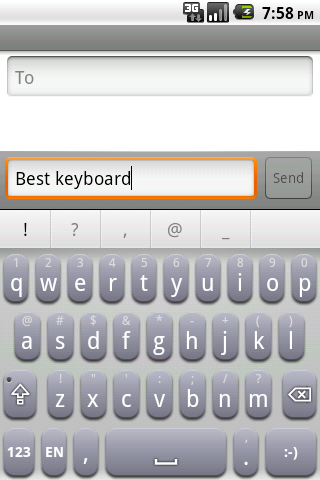
Hiya! I tried making a skin the moment I saw this. The background isn't showing up though. Am I doing anything wrong? Attached is my source. Based on the android keyboard source. Thanks!

Attachments

best-keyboard-src.zip 47.7 KB · downloaded 15,330 times

cyril Developer
Hello
I just tried your skin and it works perfectly on a HTC Hero. Can you also post the command you used to build the zip, and the zip itself?
And don't forget the hi-res images ;)
Soaa-
Here's the zip I installed on my emulator. I haven't tested it on my phone yet, because I wanted to confirm that it was working before I did so.

The command I used to compile it was the exact same as the one you provided, but with the appropriate file name.

Attachments

best_keyboard.zip 41.6 KB · downloaded 5,892 times

cyril Developer
Well, your skin also works in the emulator, but you probably created a HDPI device instead of MDPI, that's why it doesn't work (as you didn't change the HDPI images). By the way I need to add the shadow color feature to make your skin look better
Soaa-
No, I created an MDPI emulator. The buttons are showing up correctly. The background isn't though. I'm planning on making HDPI images, but only wen I get MDPI working the way I want.
cyril Developer
I tested it on a real HTC Hero and on the emulator, and it looks like this

Attachments

device.png
device.png
BinaryBulge
Good job pushing this feature forward, experimental or not. I will definitely work as fast as possible to get support for this into my keyboard as well (I won't be mentioning the name of this keyboard as I didn't come here to spam my app!).

One thing that I think is a showstopper for me - we definitely shouldn't expect users to install the Android SDK to be able to make skins. I know we need the compiled 9-patch images... but is there another way? Like loading/parsing the 9-patch images and turning them into bitmaps ourselves under the hood, without requiring the aapt tool? I think it'd be worth the extra work just to make it easier for the user.
cyril Developer
Yes the goal is to build skins without aapt, but for technical reasons that's not trivial
By the way I updated the skin sample and the beta version, so skins must be updated too:
- openskin tag has been renamed into skin
- special has been renamed into mod
- shadow colors have been added
cyril Developer
So, thanks to BinaryBulge the Android SDK is no more needed! I updated the guide and sample skin to take the changes into account.
Hopefully the skin format will not change too much starting from now!

@Soaa- : I attached a modified version of your Best Keyboard skin to make it compatible with the latest version

Attachments

best.zip 24.8 KB · downloaded 6,758 times

conspirisize
what do u mean binarybulge fixed what? im going to attempt to make a skin now! :D
conspirisize
k i need help Cyril.. im asking my friend who develops but hes not home right now, so not much help, how do i open up Draw9 in the SDK emulator?
cyril Developer
Have you managed to install the SDK? If yes, you just need to run the binary <SDK_DIR>/tools/draw9patch (there should be a .bat if you work on Windows), it's not part of the emulator nor of the Eclipse plug-in.
onthecouch
Just wondering, when are these custom skins going to be available? (Or are they already, and I just don't know how to get 'em?)
cyril Developer
They will be available when people make some ;) (you can already try mine and the "best" skin in attachment above)
BinaryBulge
conspirisize wrote:what do u mean binarybulge fixed what? im going to attempt to make a skin now! :D
I devised a way to load nine-patch images without requiring the skin to be packaged via the Android SDK. In simple terms: you don't have to download the huge SDK to make a skin. You can just ZIP up some images with a skin.xml, and you're good to go. :)

Cyril: I also think skin.xml should be able to support multiple skins. i.e.:
<skins>
<skin .../>
<skin .../>
</skins>
That way, multiple skins can be packaged in one ZIP.

Also, perhaps a standard way to allow for non-standard extensions. Like X-headers to HTTP.

I'm excited about the progress here!
zen
Hello Cyril,

Love this skin feature!

I have one simple item to add to the wishlist: can you add a tag in the skin.xml to have the letters and symbols be displayed in bold/normal? Maybe like,
<font>
<bold>true</bold>
</font>
or,
<fontweight>bold</fontweight>
As for the text on the mod keys (?123, ABC, Next, Go, Alt) it's okay if they stay unchanged. Too little room anyway.

Thanks for the great work.
cyril Developer
OK for the <skins> tag

Yes I can add a tag to change the font to bold, actually it's already supported by the keyboard (for the iPhone skin) so it will be easy
Link
Works great! Just built my first skin and love it. What is going to be the process of posting our creations on your site or in the market?
GlossBlack.png
GlossBlack.png
One issue i have found. Becasue the skins are located on the SDcard, when you mount it to the computer and bring up the keyboard, the skin is gone. Even when you disconnect from the USB it's still gone. You have to set the skin to something else and then back to your custom skin. The app needs to be able to copy it to the phone while it is being choosen or some sort of installation process.

- Link
cyril Developer
There is no process at the moment ;) Do you mind attaching it here at the moment?
Link
cyril wrote:There is no process at the moment ;) Do you mind attaching it here at the moment?
If I were to create an APK to install the keyboard skin above, where do you want to ZIP file located? Other than the SDcard (see comment above).
zen
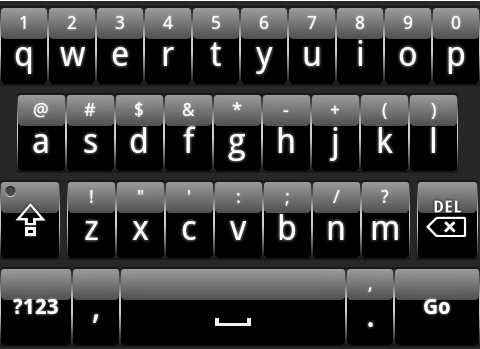
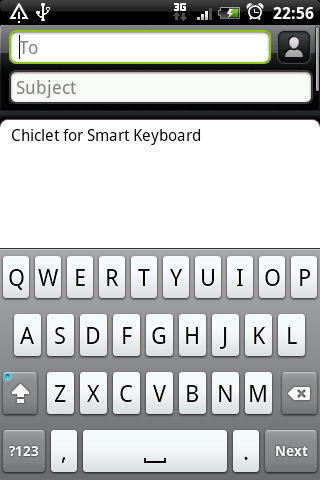
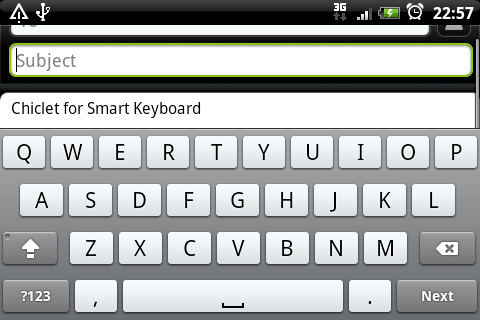
Made one, I call it Chiclet. :) Download:

chiclet.zip 12.9 KB · downloaded 1,977 times

Optimized for AMOLED displays, so that there won't be any noticeable color banding or dithering. Recommended: disable alt labels.
c1.png
c1.png
c2.png
c2.png
Right now, I've only finished working on assets for medium resolution displays. I may work on the high-res assets if I can find the time. I'm also still waiting for Cyril to implement bold fonts on the xml file ;)

Note: others may re-use the files for their own themes, provided that they mention "Chiclet, by Zen" on the xml or a link to this thread.

Also, my thanks to Cyril.
Oveja
I love your skin zen! How do you install these though? ._.
Edit: never mind, I figured it out. But why does it look different on my phone? It's more grey... and less blue-grey.
Edit2: I'd like it more if the background was like the iPhone theme :)
CfYz
zen
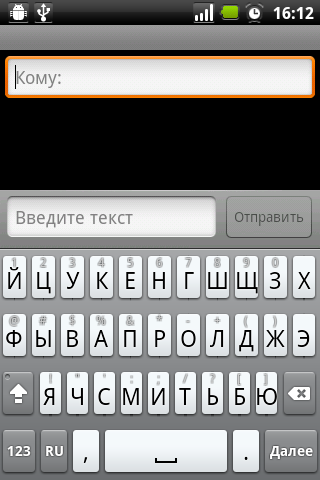
Really nice skin! Thanks a lot :) But it's have one bug - see image below. Can you fix upper line of symbols to more readable type? Or its by design?
smart_keyboard_pro_zenskin.png
onthecouch
Link wrote:Works great! Just built my first skin and love it. What is going to be the process of posting our creations on your site or in the market?
One issue i have found. Becasue the skins are located on the SDcard, when you mount it to the computer and bring up the keyboard, the skin is gone. Even when you disconnect from the USB it's still gone. You have to set the skin to something else and then back to your custom skin. The app needs to be able to copy it to the phone while it is being choosen or some sort of installation process.

- Link
Link, this is a great looking skin. Reminds me of ADWone skin, but how do I d/l it and install it?

Thanks.
zen
CfYz wrote:zen
Really nice skin! Thanks a lot :) But it's have one bug - see image below. Can you fix upper line of symbols to more readable type? Or its by design?
Fixed now. Download:

chiclet.zip 12.9 KB · downloaded 1,182 times

zen
Oveja wrote:I love your skin zen! How do you install these though? ._.
Edit: never mind, I figured it out. But why does it look different on my phone? It's more grey... and less blue-grey.
Edit2: I'd like it more if the background was like the iPhone theme :)
Sadly, most Android phones have different color profiles. Especially HTC with Sense UI phones, they tend to skew the colors more to warmer/reddish tint. :(
Oveja
I see the difference now that I'm viewing the image on my phone. I guess the AMOLED displays colours different than the Pc. But I still think this grey colour is kinda boring ;)
onthecouch
I'm sorry, I'm unclear. To install one of these custom skins, do I have to do the steps in the OP, or was that meant for skin designers only? If someone can clarify, that'd be great.
zen
onthecouch wrote:I'm sorry, I'm unclear. To install one of these custom skins, do I have to do the steps in the OP, or was that meant for skin designers only? If someone can clarify, that'd be great.
Yes, most steps described there are for designers.

To use the custom themes: Create a folder (directory) named skins in your SD card and place the downloaded .zip files there. You can use a file manager (such as OI File Manager) to do this. No need to extract the .zip content. Afterwards, the themes will appear in the SK preferences View for you to choose from.